arrow-left

All pages
gitbookPowered by GitBook
1 of 2

Loading...

Loading...

Flex-Shrink

hashtag
flex-shrink - CSS: Cascading Style Sheets | MDN

Excerpt

The flex-shrink CSS property sets the flex shrink factor of a flex item. If the size of all flex items is larger than the flex container, items shrink to fit according to flex-shrink.


The flex-shrink property sets the flex shrink factor of a flex item. If the size of all flex items is larger than the flex container, items shrink to fit according to flex-shrink.

In use, flex-shrink is used alongside the other flex properties and , and normally defined using the shorthand.

hashtag

The flex-shrink property is specified as a single <number>.

hashtag

<number>

See . Negative values are invalid. Defaults to 1.

hashtag

hashtag

hashtag

hashtag

HTML

CSS

Result

hashtag

Specification

hashtag

hashtag
Legend

Full support

Full support

See implementation notes.

Requires a vendor prefix or different name for use.

The compatibility table on this page is generated from structured data. If you'd like to contribute to the data, please check out and send us a pull request.

hashtag

  • CSS Flexbox Guide:

  • CSS Flexbox Guide:

[CSS Flexible Box Layout Module Level 1

# flex-shrink-property](https://drafts.csswg.org/css-flexbox/#flex-shrink-property)

CSSarrow-up-right
flex-growarrow-up-right
flex-basisarrow-up-right
flexarrow-up-right
Syntaxarrow-up-right
Valuesarrow-up-right
<number>arrow-up-right
Formal definitionarrow-up-right
Formal syntaxarrow-up-right
Examplesarrow-up-right
Setting flex item shrink factorarrow-up-right
Specificationsarrow-up-right
Browser compatibilityarrow-up-right
Report problems with this compatibility data on GitHubarrow-up-right
https://github.com/mdn/browser-compat-dataarrow-up-right
See alsoarrow-up-right
Basic Concepts of Flexboxarrow-up-right
Controlling Ratios of flex items along the main axisarrow-up-right
/* <number> values */
flex-shrink: 2;
flex-shrink: 0.6;

/* Global values */
flex-shrink: inherit;
flex-shrink: initial;
flex-shrink: revert;
flex-shrink: unset;
<p>The width of content is 500px; the flex-basis of the flex items is 120px.</p>
<p>A, B, C have flex-shrink:1 set. D and E have flex-shrink:2 set</p>
<p>The width of D and E is less than the others.</p>
<div id="content">
  <div class="box" style="background-color:red;">A</div>
  <div class="box" style="background-color:lightblue;">B</div>
  <div class="box" style="background-color:yellow;">C</div>
  <div class="box1" style="background-color:brown;">D</div>
  <div class="box1" style="background-color:lightgreen;">E</div>
</div>
#content {
  display: flex;
  width: 500px;
}

#content div {
  flex-basis: 120px;
  border: 3px solid rgba(0,0,0,.2);
}

.box {
  flex-shrink: 1;
}

.box1 {
  flex-shrink: 2;
}

FLEX GUIDE

hashtag
A Complete Guide to Flexbox | CSS-Tricks - CSS-Tricks

Excerpt

Our comprehensive guide to CSS flexbox layout. This complete guide explains everything about flexbox, focusing on all the different possible properties for the parent element (the flex container) and the child elements (the flex items). It also includes history, demos, patterns, and a browser support chart.


Get the poster!

Reference this guide a lot? Here’s a high-res image you can print!


hashtag
Background

The Flexbox Layout (Flexible Box) module ( as of October 2017) aims at providing a more efficient way to lay out, align and distribute space among items in a container, even when their size is unknown and/or dynamic (thus the word “flex”).

The main idea behind the flex layout is to give the container the ability to alter its items’ width/height (and order) to best fill the available space (mostly to accommodate to all kind of display devices and screen sizes). A flex container expands items to fill available free space or shrinks them to prevent overflow.

Most importantly, the flexbox layout is direction-agnostic as opposed to the regular layouts (block which is vertically-based and inline which is horizontally-based). While those work well for pages, they lack flexibility (no pun intended) to support large or complex applications (especially when it comes to orientation changing, resizing, stretching, shrinking, etc.).

Note: Flexbox layout is most appropriate to the components of an application, and small-scale layouts, while the layout is intended for larger scale layouts.

hashtag
Basics and terminology

Since flexbox is a whole module and not a single property, it involves a lot of things including its whole set of properties. Some of them are meant to be set on the container (parent element, known as “flex container”) whereas the others are meant to be set on the children (said “flex items”).

If “regular” layout is based on both block and inline flow directions, the flex layout is based on “flex-flow directions”. Please have a look at this figure from the specification, explaining the main idea behind the flex layout.

Items will be laid out following either the main axis (from main-start to main-end) or the cross axis (from cross-start to cross-end).

  • main axis – The main axis of a flex container is the primary axis along which flex items are laid out. Beware, it is not necessarily horizontal; it depends on the flex-direction property (see below).

  • main-start | main-end – The flex items are placed within the container starting from main-start and going to main-end.

  • main size

hashtag
Flexbox properties

hashtag
Properties for the Parent

(flex container)

display

This defines a flex container; inline or block depending on the given value. It enables a flex context for all its direct children.

Note that CSS columns have no effect on a flex container.

flex-direction

This establishes the main-axis, thus defining the direction flex items are placed in the flex container. Flexbox is (aside from optional wrapping) a single-direction layout concept. Think of flex items as primarily laying out either in horizontal rows or vertical columns.

  • row (default): left to right in ltr; right to left in rtl

  • row-reverse: right to left in ltr; left to right in rtl

flex-wrap

By default, flex items will all try to fit onto one line. You can change that and allow the items to wrap as needed with this property.

  • nowrap (default): all flex items will be on one line

  • wrap: flex items will wrap onto multiple lines, from top to bottom.

  • wrap-reverse

There are some .

flex-flow

This is a shorthand for the flex-direction and flex-wrap properties, which together define the flex container’s main and cross axes. The default value is row nowrap.

justify-content

This defines the alignment along the main axis. It helps distribute extra free space leftover when either all the flex items on a line are inflexible, or are flexible but have reached their maximum size. It also exerts some control over the alignment of items when they overflow the line.

  • flex-start (default): items are packed toward the start of the flex-direction.

  • flex-end: items are packed toward the end of the flex-direction.

  • start

Note that that browser support for these values is nuanced. For example, space-between never got support from some versions of Edge, and start/end/left/right aren’t in Chrome yet. MDN . The safest values are flex-start, flex-end, and center.

There are also two additional keywords you can pair with these values: safe and unsafe. Using safe ensures that however you do this type of positioning, you can’t push an element such that it renders off-screen (e.g. off the top) in such a way the content can’t be scrolled too (called “data loss”).

align-items

This defines the default behavior for how flex items are laid out along the cross axis on the current line. Think of it as the justify-content version for the cross-axis (perpendicular to the main-axis).

  • stretch (default): stretch to fill the container (still respect min-width/max-width)

  • flex-start / start / self-start: items are placed at the start of the cross axis. The difference between these is subtle, and is about respecting the flex-direction rules or the writing-mode

The safe and unsafe modifier keywords can be used in conjunction with all the rest of these keywords (although note ), and deal with helping you prevent aligning elements such that the content becomes inaccessible.

align-content

This aligns a flex container’s lines within when there is extra space in the cross-axis, similar to how justify-content aligns individual items within the main-axis.

Note: This property only takes effect on multi-line flexible containers, where flex-wrap is set to either wrap or wrap-reverse). A single-line flexible container (i.e. where flex-wrap is set to its default value, no-wrap) will not reflect align-content.

  • normal (default): items are packed in their default position as if no value was set.

  • flex-start / start: items packed to the start of the container. The (more supported) flex-start honors the flex-direction while start honors the

The safe and unsafe modifier keywords can be used in conjunction with all the rest of these keywords (although note ), and deal with helping you prevent aligning elements such that the content becomes inaccessible.

gap, row-gap, column-gap

explicitly controls the space between flex items. It applies that spacing only between items not on the outer edges.

The behavior could be thought of as a minimum gutter, as if the gutter is bigger somehow (because of something like justify-content: space-between;) then the gap will only take effect if that space would end up smaller.

It is not exclusively for flexbox, gap works in grid and multi-column layout as well.

hashtag
Properties for the Children

(flex items)

order

By default, flex items are laid out in the source order. However, the order property controls the order in which they appear in the flex container.

Items with the same order revert to source order.

flex-grow

This defines the ability for a flex item to grow if necessary. It accepts a unitless value that serves as a proportion. It dictates what amount of the available space inside the flex container the item should take up.

If all items have flex-grow set to 1, the remaining space in the container will be distributed equally to all children. If one of the children has a value of 2, that child would take up twice as much of the space either one of the others (or it will try, at least).

Negative numbers are invalid.

flex-shrink

This defines the ability for a flex item to shrink if necessary.

Negative numbers are invalid.

flex-basis

This defines the default size of an element before the remaining space is distributed. It can be a length (e.g. 20%, 5rem, etc.) or a keyword. The auto keyword means “look at my width or height property” (which was temporarily done by the main-size keyword until deprecated). The content keyword means “size it based on the item’s content” – this keyword isn’t well supported yet, so it’s hard to test and harder to know what its brethren max-content, min-content, and fit-content do.

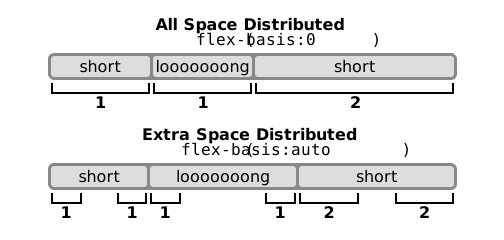
If set to 0, the extra space around content isn’t factored in. If set to auto, the extra space is distributed based on its flex-grow value.

flex

This is the shorthand for flex-grow, flex-shrink and flex-basis combined. The second and third parameters (flex-shrink and flex-basis) are optional. The default is 0 1 auto, but if you set it with a single number value, like flex: 5;, that changes the flex-basis to 0%, so it’s like setting flex-grow: 5; flex-shrink: 1; flex-basis: 0%;.

It is recommended that you use this shorthand property rather than set the individual properties. The shorthand sets the other values intelligently.

align-self

This allows the default alignment (or the one specified by align-items) to be overridden for individual flex items.

Please see the align-items explanation to understand the available values.

Note that float, clear and vertical-align have no effect on a flex item.

hashtag
Prefixing Flexbox

Flexbox requires some vendor prefixing to support the most browsers possible. It doesn’t just include prepending properties with the vendor prefix, but there are actually entirely different property and value names. This is because the Flexbox spec has changed over time, creating an versions.

Perhaps the best way to handle this is to write in the new (and final) syntax and run your CSS through , which handles the fallbacks very well.

Alternatively, here’s a Sass @mixin to help with some of the prefixing, which also gives you an idea of what kind of things need to be done:

hashtag
Examples

Let’s start with a very very simple example, solving an almost daily problem: perfect centering. It couldn’t be any simpler if you use flexbox.

This relies on the fact a margin set to auto in a flex container absorb extra space. So setting a margin of auto will make the item perfectly centered in both axes.

Now let’s use some more properties. Consider a list of 6 items, all with fixed dimensions, but can be auto-sized. We want them to be evenly distributed on the horizontal axis so that when we resize the browser, everything scales nicely, and without media queries.

Done. Everything else is just some styling concern. Below is a pen featuring this example. Be sure to go to CodePen and try resizing your windows to see what happens.

Let’s try something else. Imagine we have a right-aligned navigation element on the very top of our website, but we want it to be centered on medium-sized screens and single-columned on small devices. Easy enough.

Let’s try something even better by playing with flex items flexibility! What about a mobile-first 3-columns layout with full-width header and footer. And independent from source order.

hashtag
Flexbox Tricks

hashtag
Browser support

Desktop

Chrome
Firefox
IE
Edge
Safari

Mobile / Tablet

Android Chrome
Android Firefox
Android
iOS Safari

hashtag
Bugs

Flexbox is certainly not without its bugs. The best collection of them I’ve seen is Philip Walton and Greg Whitworth’s . It’s an open-source place to track all of them, so I think it’s best to just link to that.

hashtag
Related properties

hashtag
More information

Article on Sep 26, 2013

hashtag

Article on Nov 25, 2013

hashtag

Article on Dec 23, 2012

hashtag

Article on Oct 23, 2018

hashtag

Article on Feb 14, 2019

hashtag

Article on Feb 23, 2022

hashtag

Article on Jun 25, 2020

hashtag

Article on Apr 13, 2016

hashtag

Article on Aug 13, 2016

hashtag

Article on Nov 24, 2021

hashtag

Article on Jan 6, 2020

hashtag

Article on Apr 10, 2017

hashtag

Article on Nov 12, 2020

hashtag

Article on Feb 18, 2019

hashtag

Article on Aug 13, 2013

hashtag

Article on Jun 15, 2013

hashtag

Prefixing Flexboxarrow-up-right
  • Examplesarrow-up-right

  • Flexbox tricksarrow-up-right

  • Browser supportarrow-up-right

  • Bugsarrow-up-right

  • Related propertiesarrow-up-right

  • More informationarrow-up-right

  • – A flex item’s width or height, whichever is in the main dimension, is the item’s main size. The flex item’s main size property is either the ‘width’ or ‘height’ property, whichever is in the main dimension.
  • cross axis – The axis perpendicular to the main axis is called the cross axis. Its direction depends on the main axis direction.

  • cross-start | cross-end – Flex lines are filled with items and placed into the container starting on the cross-start side of the flex container and going toward the cross-end side.

  • cross size – The width or height of a flex item, whichever is in the cross dimension, is the item’s cross size. The cross size property is whichever of ‘width’ or ‘height’ that is in the cross dimension.

  • column: same as row but top to bottom

  • column-reverse: same as row-reverse but bottom to top

  • : flex items will wrap onto multiple lines from bottom to top.
    : items are packed toward the start of the
    writing-mode
    direction.
  • end: items are packed toward the end of the writing-mode direction.

  • left: items are packed toward left edge of the container, unless that doesn’t make sense with the flex-direction, then it behaves like start.

  • right: items are packed toward right edge of the container, unless that doesn’t make sense with the flex-direction, then it behaves like end.

  • center: items are centered along the line

  • space-between: items are evenly distributed in the line; first item is on the start line, last item on the end line

  • space-around: items are evenly distributed in the line with equal space around them. Note that visually the spaces aren’t equal, since all the items have equal space on both sides. The first item will have one unit of space against the container edge, but two units of space between the next item because that next item has its own spacing that applies.

  • space-evenly: items are distributed so that the spacing between any two items (and the space to the edges) is equal.

  • rules.
  • flex-end / end / self-end: items are placed at the end of the cross axis. The difference again is subtle and is about respecting flex-direction rules vs. writing-mode rules.

  • center: items are centered in the cross-axis

  • baseline: items are aligned such as their baselines align

  • writing-mode
    direction.
  • flex-end / end: items packed to the end of the container. The (more support) flex-end honors the flex-direction while end honors the writing-mode direction.

  • center: items centered in the container

  • space-between: items evenly distributed; the first line is at the start of the container while the last one is at the end

  • space-around: items evenly distributed with equal space around each line

  • space-evenly: items are evenly distributed with equal space around them

  • stretch: lines stretch to take up the remaining space

  • 21*

    28

    11

    12

    6.1*

    98

    96

    4.4

    7.0-7.1*

    Backgroundarrow-up-right
    Basics and terminologyarrow-up-right
    Flexbox propertiesarrow-up-right
    a W3C Candidate Recommendationarrow-up-right
    Gridarrow-up-right
    visual demos of flex-wrap herearrow-up-right
    has detailed chartsarrow-up-right
    browser supportarrow-up-right
    browser supportarrow-up-right
    The gap propertyarrow-up-right
    See this graphic.arrow-up-right
    “old”, “tweener”, and “new”arrow-up-right
    Autoprefixerarrow-up-right
    Flexbugsarrow-up-right
    Solved by Flexboxarrow-up-right
    Flexbox Cheat Sheetarrow-up-right
    Dive Into Flexboxarrow-up-right
    Use Cases for Flexboxarrow-up-right
    Quick! What’s the Difference Between Flexbox and Grid?arrow-up-right
    Does CSS Grid Replace Flexbox?arrow-up-right
    Grid for layout, flexbox for componentsarrow-up-right
    Should I use Grid or Flexbox?arrow-up-right
    Don’t Overthink It (Flexbox) Gridsarrow-up-right
    Building Multi-Directional Layoutsarrow-up-right
    How Auto Margins Work in Flexboxarrow-up-right
    `flex-grow` is weird. Or is it?arrow-up-right
    Understanding flex-grow, flex-shrink, and flex-basisarrow-up-right
    IE10-Compatible Grid Auto-Placement with Flexboxarrow-up-right
    “Old” Flexbox and “New” Flexboxarrow-up-right
    Using Flexbox: Mixing Old and New for the Best Browser Supportarrow-up-right
    A diagram explaining flexbox terminology. The size across the main axis of flexbox is called the main size, the other direction is the cross size. Those sizes have a main start, main end, cross start, and cross end.
    the four possible values of flex-direction being shown: top to bottom, bottom to top, right to left, and left to right
    two rows of boxes, the first wrapping down onto the second
    flex items within a flex container demonstrating the different spacing options
    demonstration of differnet alignment options, like all boxes stuck to the top of a flex parent, the bottom, stretched out, or along a baseline
    examples of the align-content property where a group of items cluster at the top or bottom, or stretch out to fill the space, or have spacing.
    Diagram showing flexbox order. A container with the items being 1 1 1 2 3, -1 1 2 5, and 2 2 99.
    two rows of items, the first has all equally-sized items with equal flex-grow numbers, the second with the center item at twice the width because its value is 2 instead of 1.
    One item with a align-self value is positioned along the bottom of a flex parent instead of the top where all the rest of the items are.
    .container {
      display: flex; /* or inline-flex */
    }
    .container {
      flex-direction: row | row-reverse | column | column-reverse;
    }
    .container {
      flex-wrap: nowrap | wrap | wrap-reverse;
    }
    .container {
      flex-flow: column wrap;
    }
    .container {
      justify-content: flex-start | flex-end | center | space-between | space-around | space-evenly | start | end | left | right ... + safe | unsafe;
    }
    .container {
      align-items: stretch | flex-start | flex-end | center | baseline | first baseline | last baseline | start | end | self-start | self-end + ... safe | unsafe;
    }
    .container {
      align-content: flex-start | flex-end | center | space-between | space-around | space-evenly | stretch | start | end | baseline | first baseline | last baseline + ... safe | unsafe;
    }
    .container {
      display: flex;
      ...
      gap: 10px;
      gap: 10px 20px; /* row-gap column gap */
      row-gap: 10px;
      column-gap: 20px;
    }
    .item {
      order: 5; /* default is 0 */
    }
    .item {
      flex-grow: 4; /* default 0 */
    }
    .item {
      flex-shrink: 3; /* default 1 */
    }
    .item {
      flex-basis:  | auto; /* default auto */
    }
    .item {
      flex: none | [ <'flex-grow'> <'flex-shrink'>? || <'flex-basis'> ]
    }
    .item {
      align-self: auto | flex-start | flex-end | center | baseline | stretch;
    }
    @mixin flexbox() {
      display: -webkit-box;
      display: -moz-box;
      display: -ms-flexbox;
      display: -webkit-flex;
      display: flex;
    }
    
    @mixin flex($values) {
      -webkit-box-flex: $values;
      -moz-box-flex:  $values;
      -webkit-flex:  $values;
      -ms-flex:  $values;
      flex:  $values;
    }
    
    @mixin order($val) {
      -webkit-box-ordinal-group: $val;
      -moz-box-ordinal-group: $val;
      -ms-flex-order: $val;
      -webkit-order: $val;
      order: $val;
    }
    
    .wrapper {
      @include flexbox();
    }
    
    .item {
      @include flex(1 200px);
      @include order(2);
    }
    .parent {
      display: flex;
      height: 300px; /* Or whatever */
    }
    
    .child {
      width: 100px;  /* Or whatever */
      height: 100px; /* Or whatever */
      margin: auto;  /* Magic! */
    }
    .flex-container {
      /* We first create a flex layout context */
      display: flex;
    
      /* Then we define the flow direction
         and if we allow the items to wrap
       * Remember this is the same as:
       * flex-direction: row;
       * flex-wrap: wrap;
       */
      flex-flow: row wrap;
    
      /* Then we define how is distributed the remaining space */
      justify-content: space-around;
    }
    /* Large */
    .navigation {
      display: flex;
      flex-flow: row wrap;
      /* This aligns items to the end line on main-axis */
      justify-content: flex-end;
    }
    
    /* Medium screens */
    @media all and (max-width: 800px) {
      .navigation {
        /* When on medium sized screens, we center it by evenly distributing empty space around items */
        justify-content: space-around;
      }
    }
    
    /* Small screens */
    @media all and (max-width: 500px) {
      .navigation {
        /* On small screens, we are no longer using row direction but column */
        flex-direction: column;
      }
    }
    .wrapper {
      display: flex;
      flex-flow: row wrap;
    }
    
    /* We tell all items to be 100% width, via flex-basis */
    .wrapper > * {
      flex: 1 100%;
    }
    
    /* We rely on source order for mobile-first approach
     * in this case:
     * 1. header
     * 2. article
     * 3. aside 1
     * 4. aside 2
     * 5. footer
     */
    
    /* Medium screens */
    @media all and (min-width: 600px) {
      /* We tell both sidebars to share a row */
      .aside { flex: 1 auto; }
    }
    
    /* Large screens */
    @media all and (min-width: 800px) {
      /* We invert order of first sidebar and main
       * And tell the main element to take twice as much width as the other two sidebars
       */
      .main { flex: 2 0px; }
      .aside-1 { order: 1; }
      .main    { order: 2; }
      .aside-2 { order: 3; }
      .footer  { order: 4; }
    }